To make a Google review QR code, open your Business Profile on a computer and select Read Reviews, then Get more reviews. Download the QR code Google shows you. Google's help says these codes can only be generated in a computer browser. You can also copy the review link there and turn it into a QR code with any generator.
ReviewUsToday emails customers a one-tap review request after their visit and sends them on to Google or the review sites you pick. Getting people from "I should review them" to an actual review is the whole job here.
How do you make a QR code for Google reviews?
Google makes one for you. On a computer, go to your Business Profile, select Read Reviews, then Get more reviews. Google shows a review link and a QR code.
Right-click the QR code and choose Save image as to download it. Google's help says this only works in a computer browser, not on mobile.
Here are the steps exactly as Google Business Profile Help lists them:
- On a computer, go to your Business Profile.
- Select Read Reviews, then Get more reviews.
- To copy the review link, select Copy.
- To download the QR code, right-click it and select Save image as...
| Option | How you get it | Good for | Watch out for |
|---|---|---|---|
| Google's own QR code | Business Profile on a computer, then Read Reviews, then Get more reviews, then right-click the code | Most businesses: it comes straight from Google | Computer browser only. Test-print it at your size before ordering signs. |
| Review link + static QR generator | Copy the link from the same panel, paste it into a generator | Custom colors, a logo, or a vector file for big prints | You can't change where it points after printing |
| Review link + dynamic QR generator | Same link, run through a generator that adds its own short redirect link | Several locations, frequent reprints, or scan counts | Usually a paid account, and the code depends on that company |
| Review link, no QR code | Copy it into emails, invoices and messages | Anywhere a customer can tap instead of scan | Long links look messy in print |
Google's page is blunt about the device: "Currently, reviews QR codes can only be generated on a computer browser, not on mobile devices." So if you've been jabbing at the Business Profile app in the stockroom looking for it, you're not losing your touch. The button just isn't there. Go find a laptop (I'll wait).
How do you turn your Google review link into a QR code?
Copy your review link from the Get more reviews panel in your Business Profile. Paste it into any QR code generator and download the result as a high-resolution PNG or SVG file. Then scan the finished code with two different phones before you print anything. That's the whole process, and it takes about as long as reading this paragraph.
The only real decision is whether the code is static or dynamic. Generator websites tend to explain this in the tone of a timeshare presentation, so here's the plain version.
Static vs dynamic QR codes, in plain English
A static QR code holds your review link itself, baked into the pattern. It's usually free and it never expires, but you can't edit it. A dynamic QR code holds a short link owned by the generator company, which forwards each scan to your review link. You can change where it goes and count scans.
| Static QR code | Dynamic QR code | |
|---|---|---|
| What the code holds | Your review link itself | A short link that forwards to your review link |
| Typical cost | Usually free | Often a monthly or yearly subscription |
| Change the destination after printing? | No | Yes |
| Scan counts | No | Usually yes |
| If you stop paying, or the company closes | Keeps working | Can stop working |
| Best for | One location with a link you won't change | Many locations, frequent reprints, or tracking |
That second-to-last row is the one to read twice. If a dynamic code's redirect stops, every sign, sticker and receipt you printed now points nowhere. That's a rough week to discover who really owned your table tents.
For a single shop, I'd go static. A free code that can't expire beats a clever one with a monthly bill. Check your generator's terms before you print, either way.
Where should you put your Google review QR code?
Put it where customers pause with a free hand and a good feeling: the counter while they pay, the table while they wait for the bill, the receipt, the invoice, or the box they just opened. Google's help suggests receipts, thank-you emails, the end of a chat, and a printed display in your store.
| Placement | Works best for | Why it works |
|---|---|---|
| Counter sign | Salons, retail, cafes, repair shops | Seen at checkout, right as the visit ends |
| Table tent | Restaurants, bars, waiting rooms | People are sitting, waiting and holding their phones anyway |
| Printed receipt | Restaurants, retail, anyone who prints receipts | It goes home with the customer |
| Invoice (paper or PDF) | Plumbers, electricians, cleaners, contractors | The job's done and the result is in front of them |
| Packaging or insert card | Online shops, bakeries, takeout | Opened at home, with the product in hand |
| Leave-behind card | Mobile and in-home services | Stays on the fridge after you've driven off |
One small trap: a QR code on a PDF invoice asks the customer to scan their own screen with a second phone. Some will. Most will sigh. Put the plain, clickable review link right next to the code.
If I ran a cafe, I'd put the code on the table tent and the receipt, then stop. Six codes on one counter starts to look like a ransom note. For more ways to ask, see our guide on how to get more Google reviews.
What mistakes should you avoid with a Google review QR code?
Four mistakes cause most of the trouble. Offering a discount or freebie for a review breaks Google's policy. Pressuring customers to review before they leave does too.
Pointing the code at your profile or website, instead of the review form, loses people. And a code that's tiny or faint simply won't scan.
| Mistake | Why it hurts | Do this instead |
|---|---|---|
| "Scan and review for 10% off" | Google bans offering incentives such as "payment, discounts, free goods and/or services" in exchange for a review | Ask, and offer nothing |
| Staff hovering until the customer posts | Google says merchants "should not require or pressure users to leave ratings or write reviews while on the premises" | Leave the code where they can scan it later, and follow up after the visit |
| Code points to your Maps listing or website | The customer has to hunt for the review button, and many won't | Use the review link from Get more reviews |
| Tiny, faint or over-designed code | Phones fail to read it, and people give up after one try | Dark code on a plain light background, with a clear margin; test-scan it from where customers stand |
| Showing the code only to happy customers | Google's policy bars businesses that "selectively solicit positive reviews" | Same sign, same ask, for everyone |
Quotes from Google's Maps user-generated content policy, checked 12 October 2026.
The discount one is the most tempting, because it feels generous. Google sees it differently, and its Business Profile help calls incentivized reviews "fake engagement" that's "strictly prohibited". Our guide to review gating covers the selective-asking rule in more depth.
And yes, a QR code shaped like your logo, in pastel on pastel, is lovely. It's also a very expensive sticker.
Why does a counter QR code work better with a follow-up email?
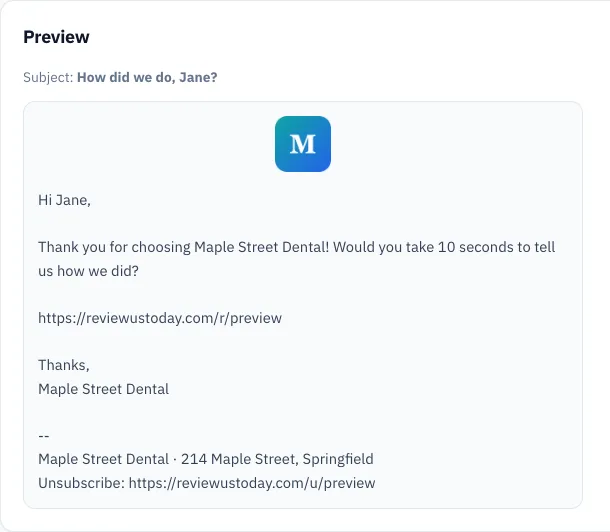
A QR code only reaches customers who notice it, have a free hand, and remember to finish. A follow-up email reaches every customer after the visit, when they're home and already on their phone. Used together, the code catches the keen ones on the spot and the email catches everyone who meant to and forgot.
Asking works. In BrightLocal's Local Consumer Review Survey 2026, 28% of consumers said they'll "always" write a review if asked, up from 16% in 2025. And 78% had been asked to write one in the last 12 months, so your customers won't find the request strange. Our review request email templates give you the wording, and ReviewUsToday's review management can send them and the reminders for you.
What we see in the demo account
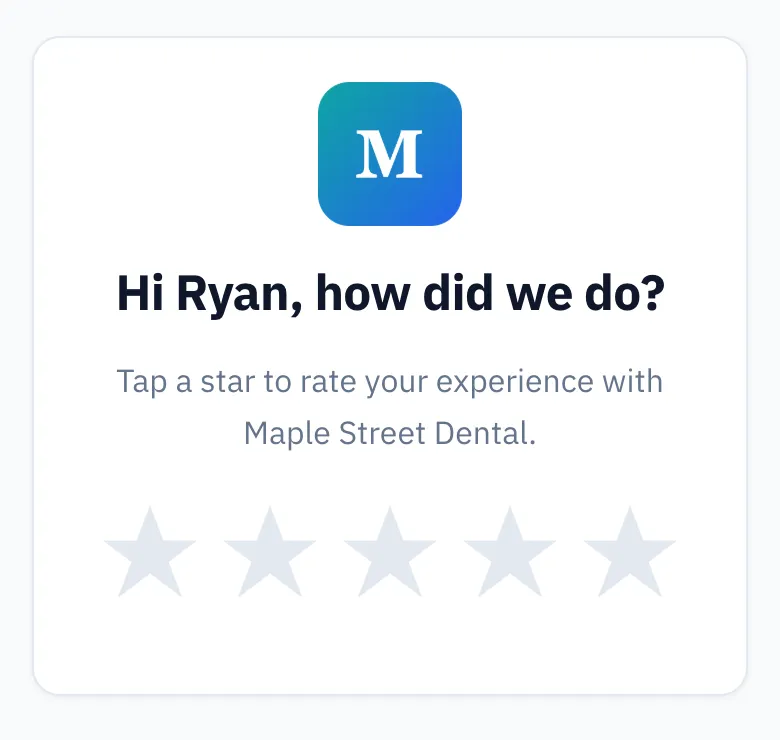
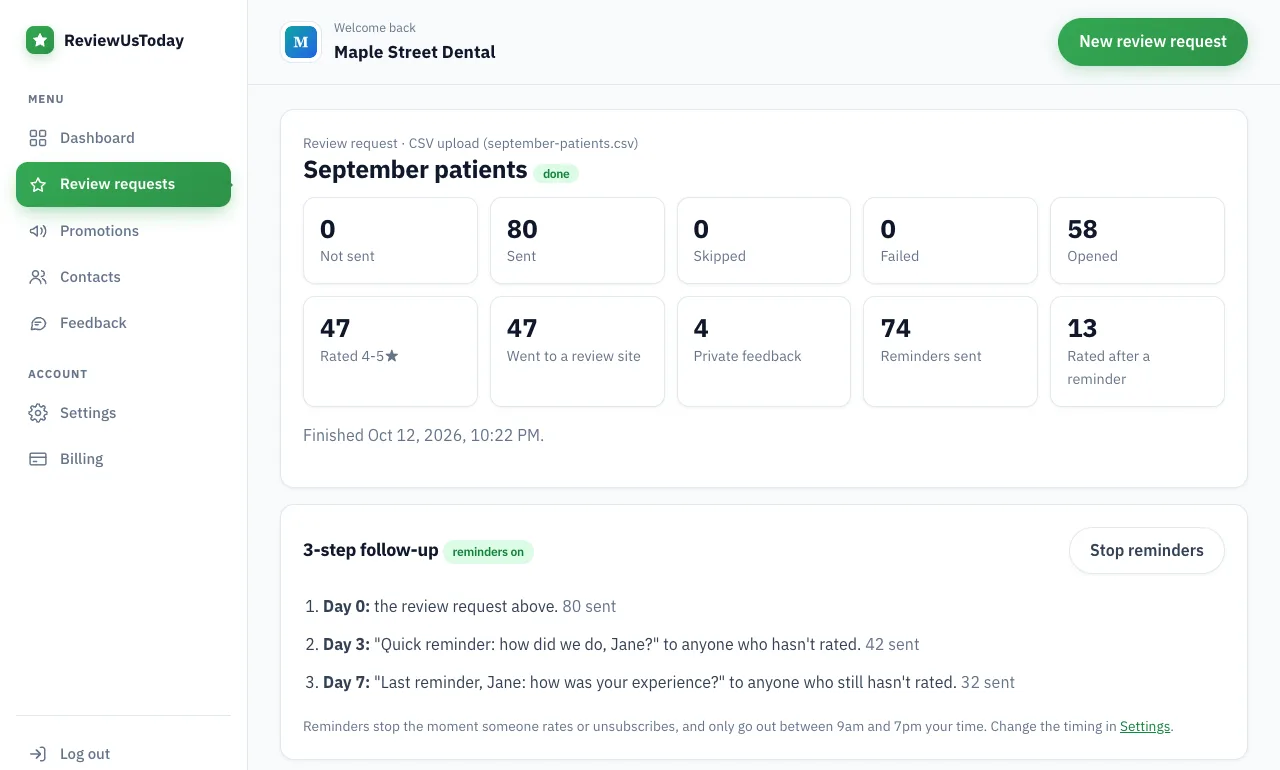
We ran a demo business, Maple Street Dental, through ReviewUsToday with 80 sample customers. It's a demo with sample data, not a real practice's results. Of the 51 customers who rated, 13 rated after a reminder email.
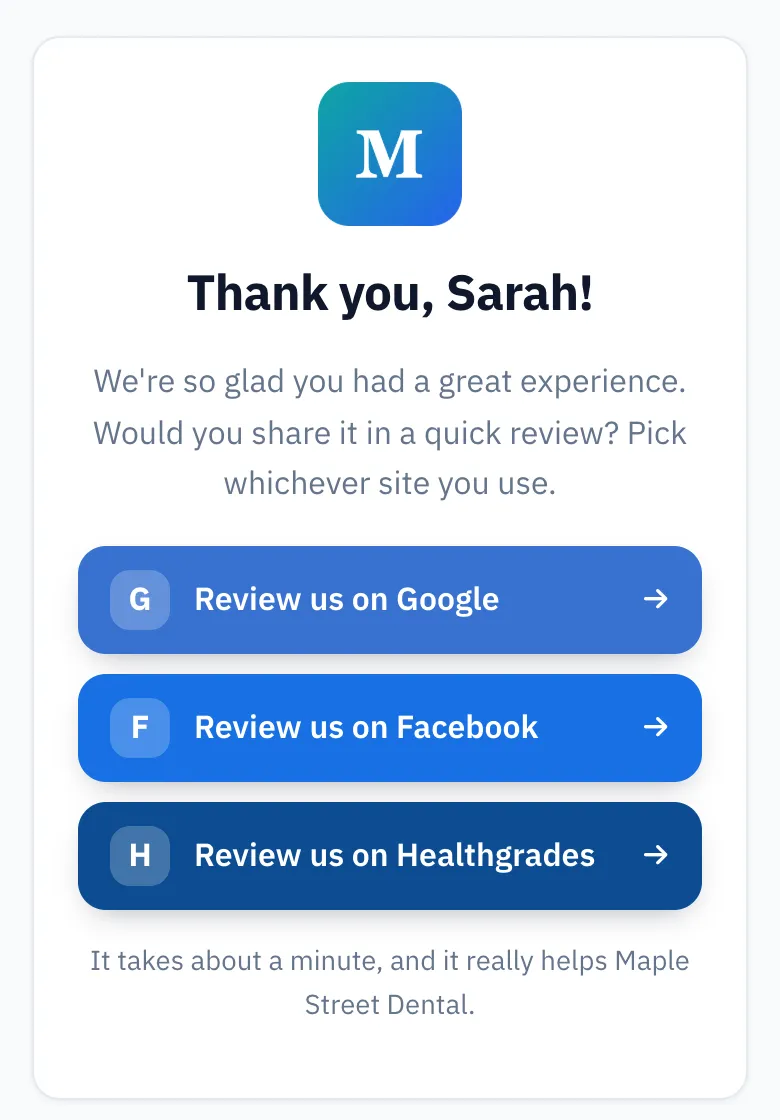
That's about a quarter of the ratings, from people who'd already walked past the counter. Here's the page they land on after tapping the email:
Where ReviewUsToday fits
ReviewUsToday doesn't make QR codes. It emails each customer a one-tap rating request after the visit, with Day 3 and Day 7 reminders, and sends happy customers to Google or the sites you choose. It's email only, and it doesn't reply to reviews for you.
Keep your Google code on the counter, and see how ReviewUsToday's review request software follows up with everyone who walked past it.
Frequently asked questions
How do I get a QR code for Google reviews?
On a computer, go to your Business Profile, select Read Reviews, then Get more reviews. Right-click the QR code and choose Save image as to download it. Google's help says review QR codes can only be generated in a computer browser, not on mobile.
Why can't I find the review QR code on my phone?
Google's help says review QR codes can currently only be generated in a computer browser. On your phone you can still share your review link, then make the QR code later on a computer.
Can I offer a discount to customers who scan the QR code and leave a review?
No. Google's policy bans offering incentives such as payment, discounts, free goods or services in exchange for a review. Ask every customer the same way and offer nothing.
Do Google review QR codes expire?
A static QR code holds your link directly, so it keeps working as long as the link does. A dynamic code runs through the generator company's redirect, so it can stop working if the account lapses or the company shuts down.
Where is the best place to put a Google review QR code?
Wherever customers pause after a good experience: the checkout counter, a table tent, the receipt, the invoice or the packaging. Pick one or two spots and keep the code large and high contrast so it scans first time.
Sources
Keep reading
How to get your Google review link
Google review link in 3 steps, straight from Google's help pages. Skip the generators, avoid the profile-link mistake, and see where the link earns reviews.
How to leave a Google review
How to leave a Google review on your phone, computer or from a link a business sent you, plus how to edit or delete it and why it may not show up.
How to get customers to leave reviews (and get more of them on Google)
How to get customers to leave reviews on Google: ask everyone, ask at the right moment, send a one-tap link and follow up. Policy-safe tactics and scripts.